How to split a PDF by chapters
There are three practical ways to split a PDF by chapters: use its bookmarks, use the book's printed table of contents, or type the page ranges yourself. PDF BOOK Split supports all three, offline, on Windows.
Which method fits your PDF
| Your PDF | Best method | Mode in PDF BOOK Split |
|---|---|---|
| Has bookmarks for every chapter | Split by bookmarks | By bookmarks |
| No bookmarks, but a printed contents page | Paste the contents and set the page offset | Book chapters |
| You already know the page numbers | Type the ranges | Page ranges |
Method 1: split by bookmarks
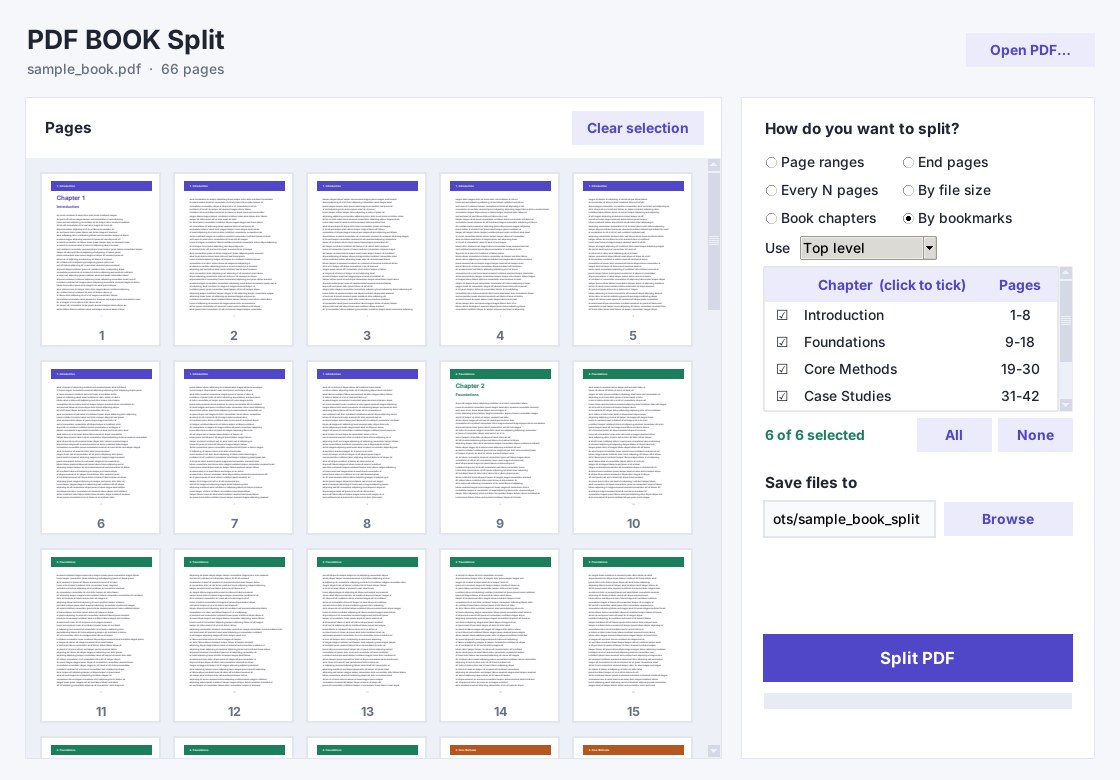
- Open the PDF and choose By bookmarks.
- Choose Top level for chapters, or Top two levels to include sections.
- Tick only the chapters you want. The buttons All and None change every row at once.
- Press Split PDF. Pages before the first bookmark can be saved as a front matter file.
Method 2: split by the printed table of contents
Use this when the PDF has no bookmarks. Paste the contents, enter the PDF page where book page 1 appears, and the program does the page arithmetic. The full walkthrough is in Split a PDF into chapters without bookmarks.
Method 3: type page ranges
Write ranges such as 5-12, 30-40, 55, or click the page thumbnails and the ranges fill in for you. Each range becomes its own PDF.
Other ways to cut a book
- By file size: set a maximum size in MB per file, for email or upload limits.
- Every N pages: equal parts.
- End pages: give only the last page of each part, for example 20, 50.
Output files are named after the chapters, such as 02 Foundations.pdf. The original is never changed, and bookmarks are copied into each new file.
Questions
How do I split a PDF into separate chapter files?
Open the PDF in PDF BOOK Split and pick a mode. Use By bookmarks if the PDF has them. If it does not, use Book chapters and paste the printed table of contents. Each chapter is saved as its own PDF.
Can I split only some chapters?
Yes. In By bookmarks mode every chapter has a checkbox, so only the ones you tick are saved.
Does splitting keep the bookmarks?
Yes. Bookmarks that belong to each part are copied into the new file.
Does it work offline?
Yes. Nothing is uploaded and no account is needed.
Windows 10 / 11 (64-bit) · Works offline · 30-day refund